Supplier Bridge · Guide
How to map Shopify purchase-order fields to a supplier's import columns
Most supplier upload failures come from small mismatches: the wrong code in the item column, a header spelled differently, a comma where a semicolon was expected. This guide works through a supplier's specification column by column, whatever tool you use to build the file.
Published by zFinia on 2 October 2026. Shopify documentation checked 2 October 2026.
Start from the supplier's specification, not your data
Ask the supplier for their current import specification or a sample file they accept. Write down, for every column:
- the exact header text, including spaces, capitals and punctuation;
- its position;
- whether it is required, optional or must be blank;
- what kind of value it expects (their product code, your code, a number, a date, a fixed code);
- any format rule, such as decimal places or date format.
Also note the file-level rules: delimiter, header row, and any limit on the number of lines per file.
Supplier SKU versus your store SKU
Suppliers usually identify products by their own code, not yours. Shopify purchase orders have a separate supplier SKU on each line. When you create a purchase order, Shopify fills in the supplier SKU from previous orders with that supplier, and if there is no supplier SKU on file it uses the variant's SKU by default (Creating purchase orders).
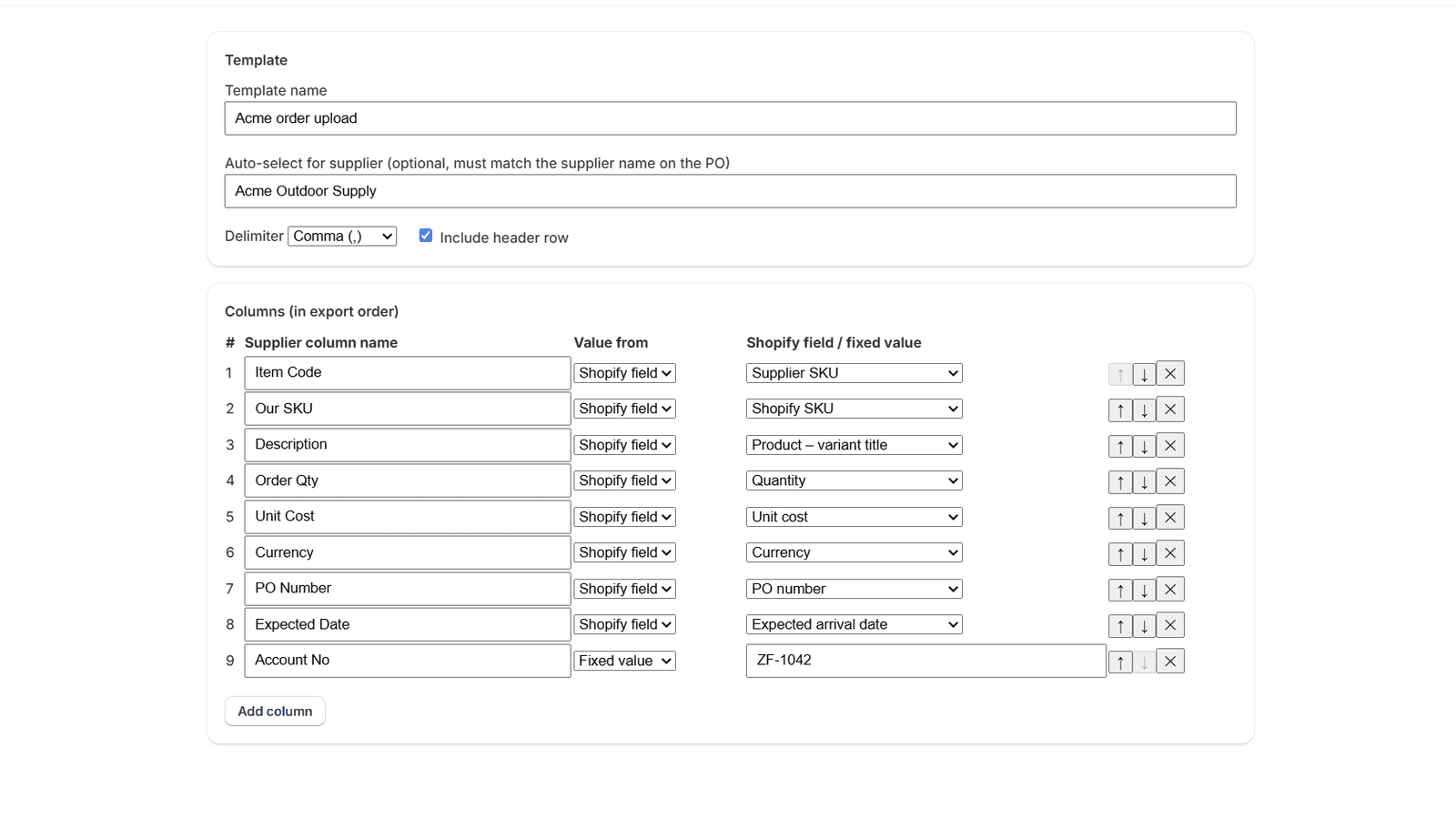
- Map the supplier's item-code column to the supplier SKU, not your store SKU, unless the supplier says they use your codes.
- Some suppliers want both codes, for example an "Item Code" and a "Customer Ref". Map one to each.
- Check the supplier SKU on each line before you export. If it defaulted to your own SKU, the supplier won't recognise it.
- Native purchase orders hold one supplier SKU per line. Shopify suggests metafields or metaobjects for tracking multiple suppliers or alternate codes per product (Migrating from Stocky); Supplier Bridge does not read those.
Fixed values: account numbers and codes
Many import formats repeat the same value on every line: your account number, a branch code, a delivery method. These aren't on the purchase order, so add them as fixed-value columns. Treat account numbers as confidential: keep them out of screenshots and examples you share.
Header names and column order
- Copy header names from the specification rather than retyping them. "Qty", "QTY" and "Quantity" are different to a strict importer.
- Match the column order exactly. Some importers read by position and ignore headers entirely.
- If the supplier wants no header row, turn it off. If they want a header row, include every column header even for blank columns.
- If a column must exist but stay empty, add a fixed-value column with nothing in it, so the position is preserved.
Delimiters and number formats
Comma is the default, but suppliers in regions that use a comma as the decimal separator often require semicolons. Supplier Bridge supports comma, semicolon, tab and pipe delimiters.
Artikel;Menge;Preis
NP-TENT-2P;8;142.50
NP-STOVE-01;12;38.00- Supplier Bridge writes amounts as plain decimals with a full stop (142.50), no currency symbol and no thousands separator, rounded to the currency's minor units. It does not write a decimal comma (142,50). If your supplier requires one, ask whether they also accept a full stop before relying on this file.
- Quantities are whole numbers.
- Dates are written as YYYY-MM-DD. If the supplier needs a different date format, the file won't match.
- A value that contains the delimiter, a double quote or a line break is wrapped in double quotes, which most importers handle. Check with the supplier if theirs doesn't.
Blank fields
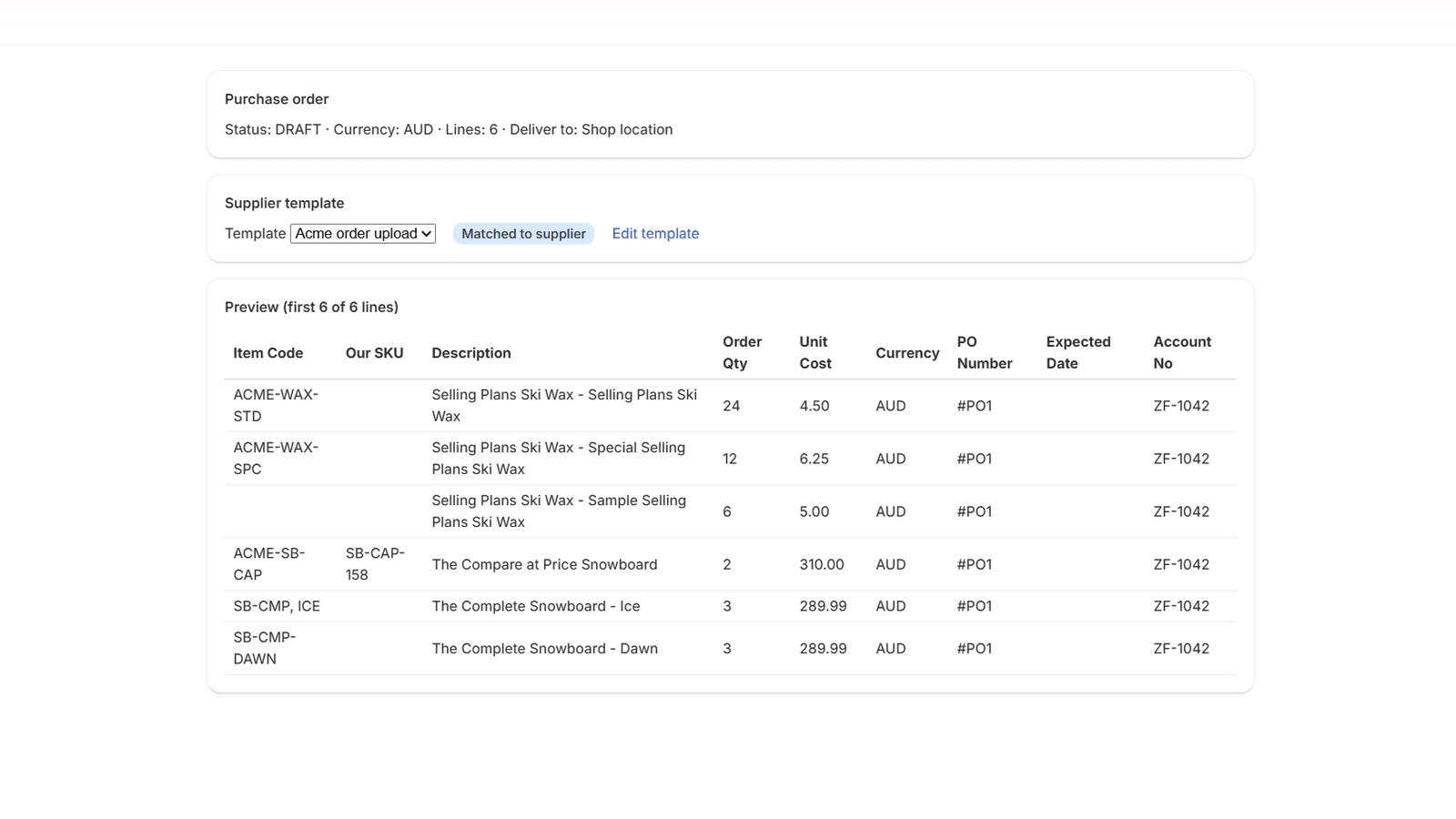
A blank cell in the preview means the purchase order doesn't have that value. Common causes:
- No supplier SKU or Shopify SKU on that line or variant.
- No expected arrival date yet: it comes from the carrier's estimated arrival on a shipment for the order, and stays blank until one exists.
- No destination location chosen on the order.
Fix the data in Shopify rather than editing the CSV afterwards, so the next export is right too. If a required column is blank, many supplier importers reject the whole file.
Compare a redacted specification to the preview
Before sending the first file, put the supplier's specification next to the preview and check each row of this table.
| Check | Supplier specification (example) | What to look for in the preview |
|---|---|---|
| Header text | Item Code | Same spelling, spacing and capitals |
| Column position | Item Code is column 1 | Same position |
| Item code source | Supplier's product code | Codes the supplier will recognise, no blanks |
| Quantity | Whole units | Ordered quantity, not received quantity |
| Price | 2 decimal places | Plain decimals, no symbol |
| Account | Your account number on every row | Fixed value present on every row |
| File rules | Semicolon-delimited, header row | Delimiter and header setting saved in the template |
Then download the file and send one test order, or ask the supplier to run it through their import before you rely on it.
Formula risk in an unmodified CSV
Product titles, codes or notes that start with =, +, - or @ can be interpreted as formulas when a CSV is opened in a spreadsheet program. A supplier's import needs the original values, so changing them (for example by adding an apostrophe) can break the import.
Supplier Bridge keeps every value exactly as it is. When a file contains values like these, it shows which cells are affected and asks you to confirm with "Download unmodified supplier CSV". Plain signed numbers such as -10 aren't flagged. The file is not sanitised, and your supplier is not warned when they open it. If a value shouldn't start with one of those characters, correct it in Shopify.
Where Supplier Bridge fits
You can apply every check above with a spreadsheet. Supplier Bridge saves the mapping as a template per supplier, so the column names, order, fixed values and delimiter are reused for the next purchase order instead of being rebuilt by hand.
Sources
Shopify pages cited above, as retrieved on 2 October 2026: